May 5, 2026 QRCodeer Team
How to Print QR Codes Without Blur: A Designer's Checklist
Struggling with pixelated QR codes? Follow our checklist to ensure every print is sharp and perfectly scannable.
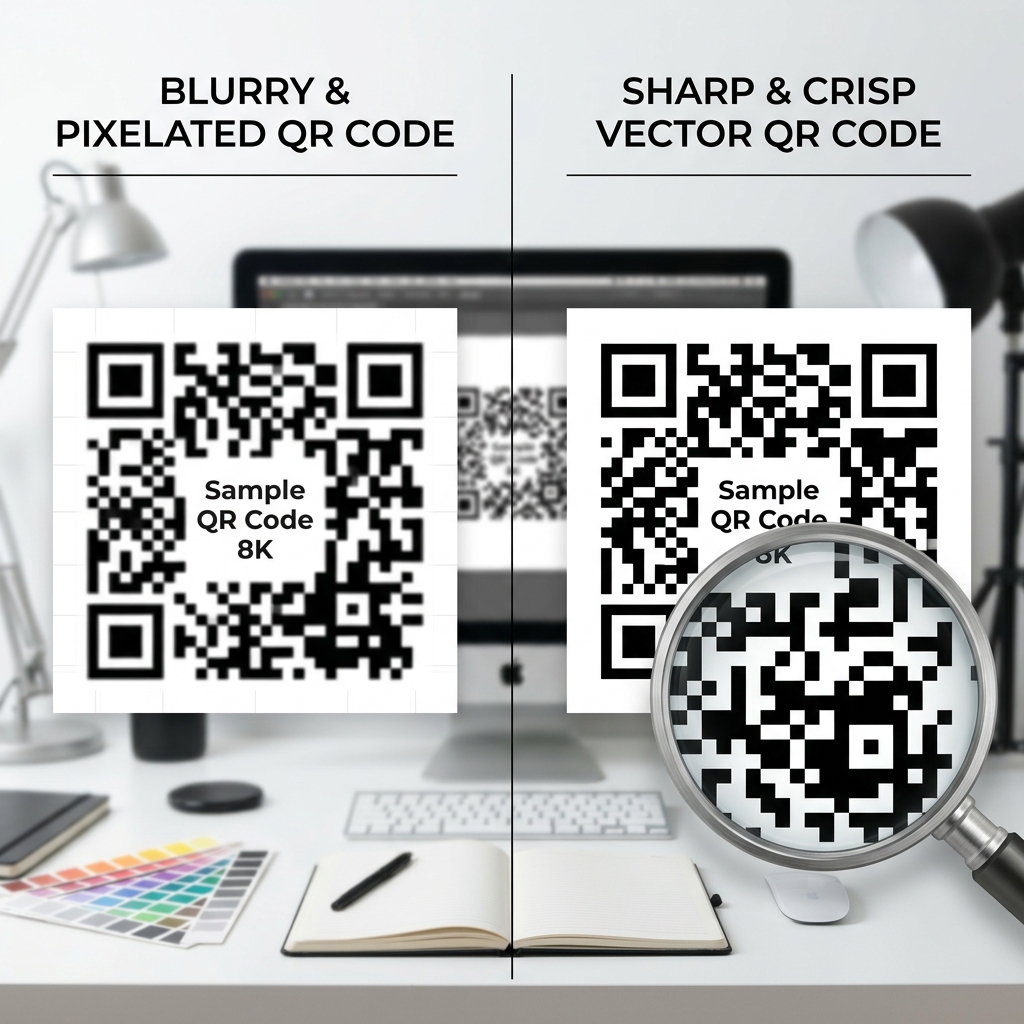
1. Always Use Vector Files
As discussed, SVG and PDF are your best friends. They never blur, no matter the size.
2. High Contrast is Non-Negotiable
While you can use colors, ensure the foreground (the dots) is significantly darker than the background. Light gray on white is a recipe for scan failure.
3. Respect the Quiet Zone
The 'Quiet Zone' is the white border around the QR code. Never crop it too close, as the scanner needs this space to identify the code's boundaries.
4. Test at Small Scale
Before printing 10,000 flyers, print one at home and test it with multiple different smartphone models.
Professional Export
Ensure your exports are correct by using our Print Layout Designer, which is built for high-precision output.